 Halftime
Harvey Specter picks up a Coke. The show keeps going.
I built Halftime with Yuvraj and Pravin, and we won the  hackathon.
We wanted to put ads inside movies and shows without cutting away to a commercial. You give Halftime a product and a video, and it finds a scene where the product fits, generates the interaction, and puts that clip back into the episode.
Usually, someone decides on a product placement before filming. We were interested in doing it after the video already exists. You could pick a product for the person watching and then work out where it belongs.
That last part took some work. Someone might like Coke, but that doesn’t make every scene a good place for a Coke can. And even when the generated clip looked good, we still had to get it to play properly inside the original video.
Finding the right scene
Say you’re advertising a Coke can in an episode of Suits. We start by grabbing the subtitle file for that episode. It tells us what people are saying and when they’re saying it, so we can look for a moment where the product would make sense.
We give Grok the transcript and ask it to find five spots. It looks at the dialogue, the pauses between lines, and what’s happening around each possible placement. Then we get clips from all five spots and compare them to choose one.
- 01ProductWhat are we advertising?
- 02MediaWhich movie or episode?
- 03SubtitlesDialogue aligned to timestamps
- 04Five spotsFind moments that fit the product
- 05Compare clipsInspect all five and select one
- 06Place the adGenerate the interaction and stitch it in
The first call includes a timestamped transcript summary, the gaps we found in the dialogue, product details, and viewer interests. We ask for JSON with five ranked candidates. For each one, we get an insertion timestamp, start and end times for the surrounding clip, and a reason for choosing it. The video code can use those timestamps directly.
The footage is where we check whether the idea holds up. A conversation might sound like a good place for a drink, but there still needs to be somewhere to put it. For Coke, we might look for someone with a free hand or a table where a can could sit.
For the visual check, we send Grok’s vision model frames from the candidates along with their transcript context in the same request. We ask it to pick one and explain how the product fits, as well as why it rejected the others. We also tell it to avoid establishing shots. An exterior shot of a building doesn’t give a character much opportunity to pick up a drink.
Early on, Grok kept choosing the same scene of men in suits for both headphones and laundry detergent. That made the problem pretty obvious. It could find a plausible scene, but we needed it to explain why this specific product belonged there. We added that requirement to the visual prompt.
Only the winning candidate goes to video generation. This lets us compare several ideas before paying to generate a clip. It also helps when something goes wrong. We can look at the five candidates and the model’s reasoning to see whether the problem started with the placement or the generation.
Generating the placement
Once we’ve picked a spot, we need some footage around it. The CLI defaults to ten seconds before the insertion point and three seconds after. This gives the model a bit of the scene leading up to the interaction we want it to generate.
We pass the clip into the video processing code with the product details, viewer context, and summaries of what happens before and after the cut. The generation client uploads the clip to WaveSpeed and calls Wan 2.5’s video extension endpoint for five seconds of new footage.
WaveSpeed returns a prediction ID. We poll that ID until the job completes or fails, then download the result. The upload, generation request, polling, and download are separate steps, so we can tell which one failed.
We had to be careful about how we described the interaction. It helped to describe the product first and then what the character should do with it. Otherwise, the model could change the character itself. We wanted someone to pick up a product and still look like the same person in the same scene.
We also keep the episode timestamps separate from the generated clip’s own timestamps. A placement might belong twenty minutes into an episode, while the new clip starts at zero and has a different duration from the footage it replaces. We have to account for that when we put it back.
Putting the clip back
We thought stitching the video together would be the easy part. It wasn’t.
The original footage and generated clip had different resolutions, codecs, and audio layouts. We used an FFmpeg filter graph to join three pieces together. There’s the footage before the cut, the new clip, and the footage after it. FFmpeg needs those inputs to agree on things like resolution and frame rate before it can concatenate them.
For the source we were using, the insertion script scales the generated video to 1920 × 1080, sets its sample aspect ratio to 1, and changes its frame rate to 24000/1001, or about 23.976 fps. We resample the audio to 48 kHz and map it to 5.1 channels. Those values match that source footage. They’d need to change for a different format.
Then there were the timestamps. At one point the picture would pause while the audio kept playing, then speed up to catch up. We fixed that by resetting the timestamps on every piece before joining them.
At every segment boundary
setpts=PTS-STARTPTS
asetpts=PTS-STARTPTS
These filters subtract the first presentation timestamp from every timestamp in the video and audio streams. Each piece now starts at zero, and FFmpeg can put them onto one timeline. We use Apple’s VideoToolbox H.264 encoder for the final video, AAC for the audio, and move the MP4 metadata to the beginning of the file so playback can start before the whole download finishes.
All three pieces need compatible formats and timestamps before we join them.
This still means encoding the assembled episode again. Hardware acceleration helps, but most of the episode hasn’t changed. We also worked on an HLS version so we could serve the video in smaller pieces.
Watching while it processes
We wanted someone to be able to start watching while the ad was still being generated. HLS gives us a playlist that points to small video segments. We use FFmpeg to package the original episode with a target of ten seconds per segment, copying the existing codecs so this step doesn’t require another full encode.
When the frontend requests a video, our FastAPI endpoint creates a job ID and schedules the processing as a background task. We keep track of the user who owns the job, where its output goes, and how far it’s gotten. The frontend checks the status every five seconds until it finishes or fails.
The playlist handler is set up to serve the original footage while generation runs. When the edited segments are ready, it assembles a new playlist with the original segments before the ad, the replacements, and the remaining footage. The segment handler checks the job state to decide which files to serve.
The browser makes this harder because it may have already buffered footage from the old playlist. Our player has a reload method that saves the current playback time, loads the playlist again, and restores that position once it’s parsed. We use hls.js where it’s supported and native HLS where it isn’t. Network errors trigger another load attempt, while media errors use hls.js’s media recovery method.
There’s still work to do here. Jobs are stored in memory, so they won’t survive a server restart. We estimate segment positions using ten seconds per segment, which won’t always match the actual boundaries. And refreshing a playlist doesn’t necessarily replace footage the browser has already buffered. To make this reliable across more episodes, we’d need persistent jobs, the actual segment timestamps, and better coordination with the player.
The viewer and advertiser apps
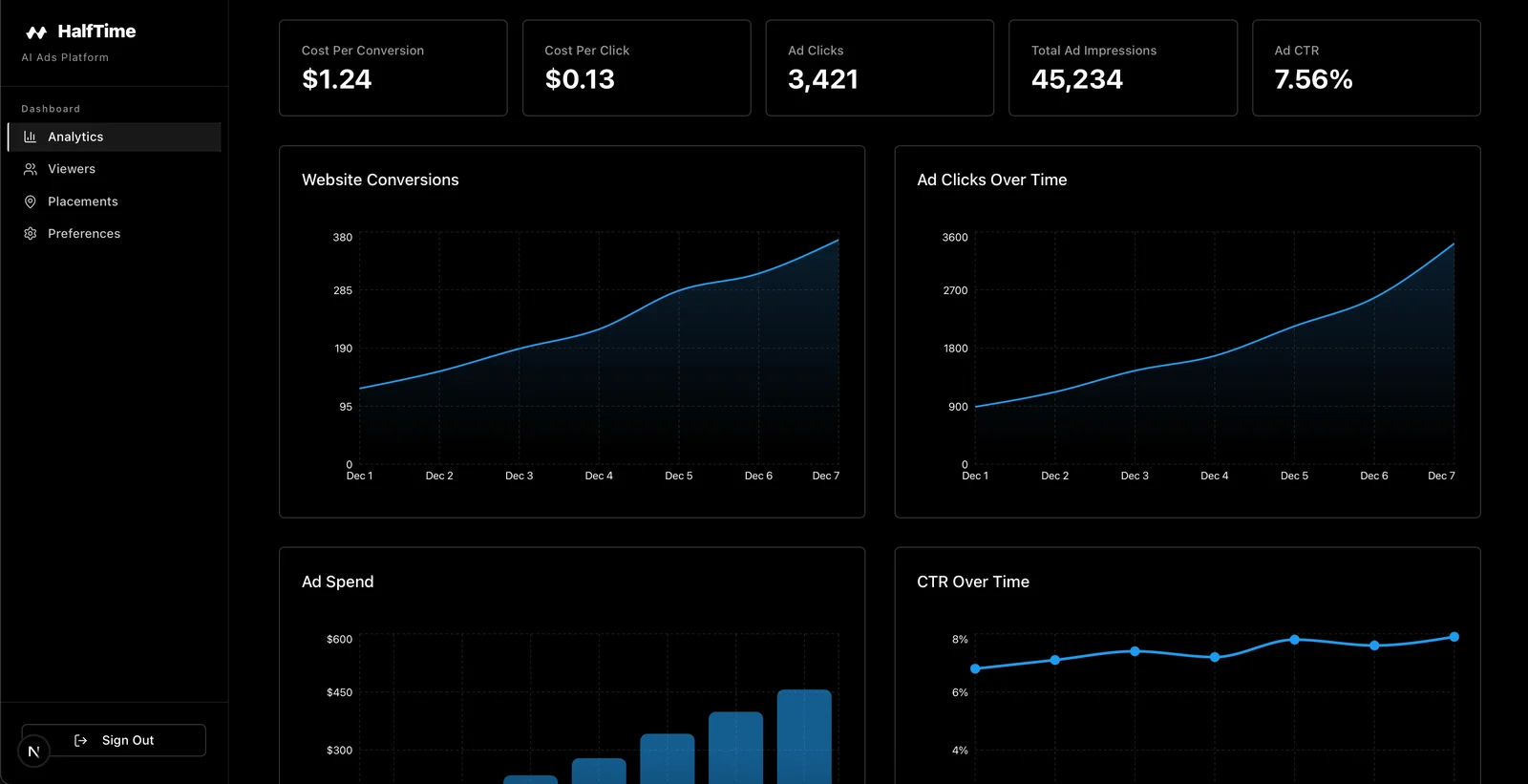
We built both sides of this in Next.js. In the viewer app, you browse shows and watch the edited video. In the advertiser dashboard, you choose a product, set an audience, and specify content you don’t want the product appearing in.
You can see the Suits and Friends placements in the demo at the top. Both play inside our viewer, with a link to the product shown during the placement.